Not every improvement comes with a new button. This month two changes made the everyday parts of a research workspace behave the way you would expect them to: when you delete something, it is gone, and when you want Eva to read a whole project, you can pick it in a couple of clicks.
Deleting now removes the stored files
Research workspaces hold sensitive material: interview recordings, camera and screen streams, transcripts, exported reports. When you delete one, you reasonably expect the recording itself to go, not only the line that pointed to it.
Before this change, deleting something in User Evaluation removed it from the app straight away, but some of its stored files could stay in storage until a later clean-up. Now a delete removes the stored files with it:
- A Library file: the upload itself, its card picture, and any clip or reel videos cut from it.
- A study: its session recordings, camera and screen streams, its study report exports, and the rendered videos of its clips, reels and recordings.
- A report: its exports.
- A clip or a reel: its rendered videos.
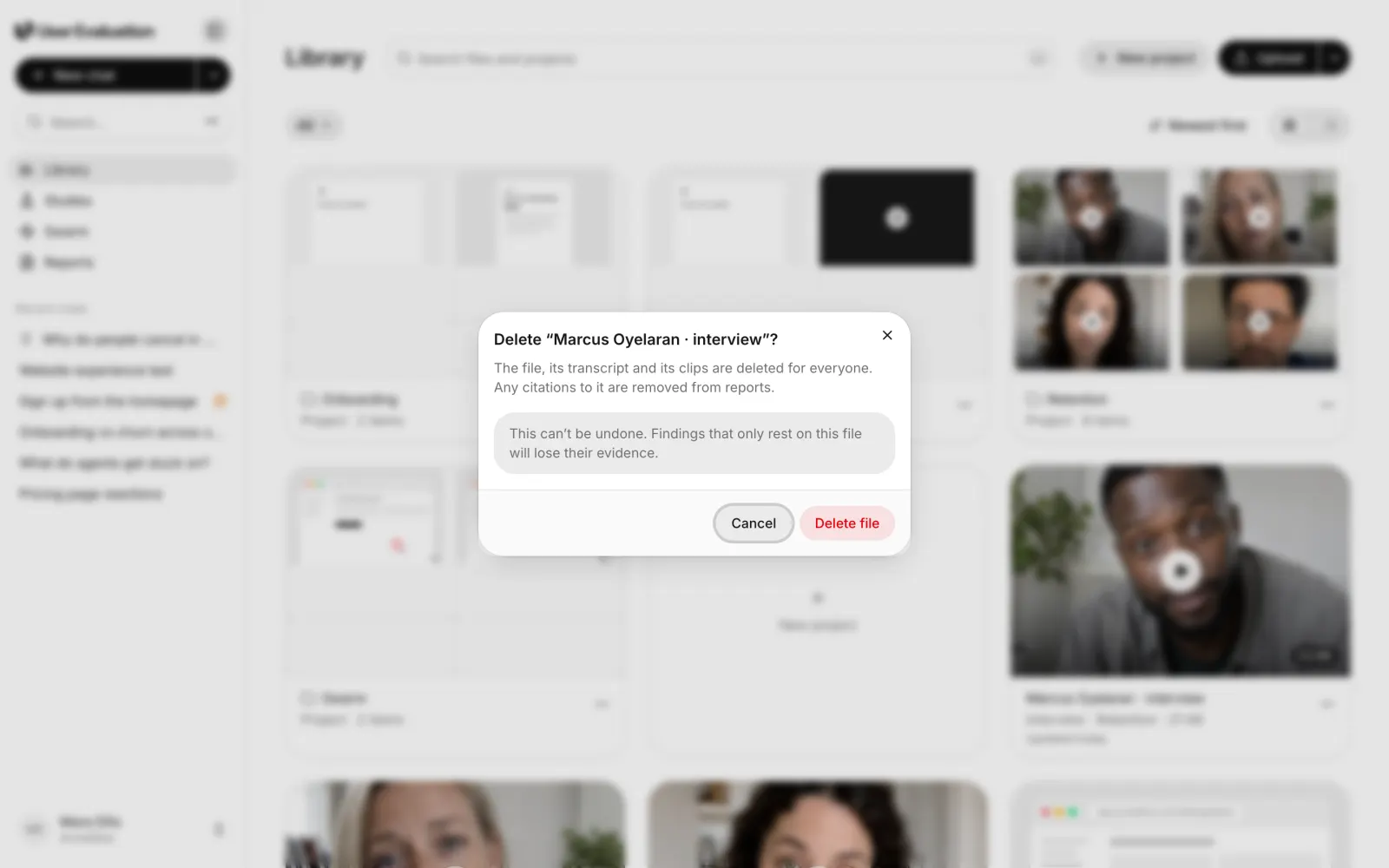
The confirmation tells you what goes: the file, its transcript and its clips, for everyone in the workspace, along with any citations to it in reports. Deletes can't be undone, so the destructive action stays in the ⋯ menu and always asks first.
Shared files are kept while something still uses them
Some stored files are shared on purpose. An exported report and its copy in the Library point to the same file, and so do a session recording and its Library item. Deleting one of them must not break the other. So before anything is removed from storage, we check whether another item still uses it, and keep it if so. It goes when the last thing that uses it is deleted.
Why this matters
- Privacy. When a participant asks you to remove their interview, deleting it now removes the recording too.
- Clean storage. Test uploads and abandoned drafts no longer leave files behind.
- Retention you can trust. Combined with your workspace's recording retention setting, what you delete and what ages out are both actually removed.
If the storage service is briefly unavailable, the delete still goes through in the app, so a temporary problem never leaves you stuck with something you can't delete.
Project context, as a proper picker
Projects in User Evaluation group interviews, uploads and study reports around one question, like "Why do customers leave in month two?". This month projects open as folders in the Library, with the same grid, list, search and filters as the rest of it, scoped to that project.
The bigger change is in the chat composer. When you ask Eva, the AI assistant in User Evaluation, a question, you can now give her one or more whole projects to read first. Press + in the composer and choose Add project context. A dialog opens with:
- Search, so you can find a project by name in a workspace with dozens of them.
- Multi-select, so you can tick several projects at once.
- Item counts and descriptions, so you pick the right one.
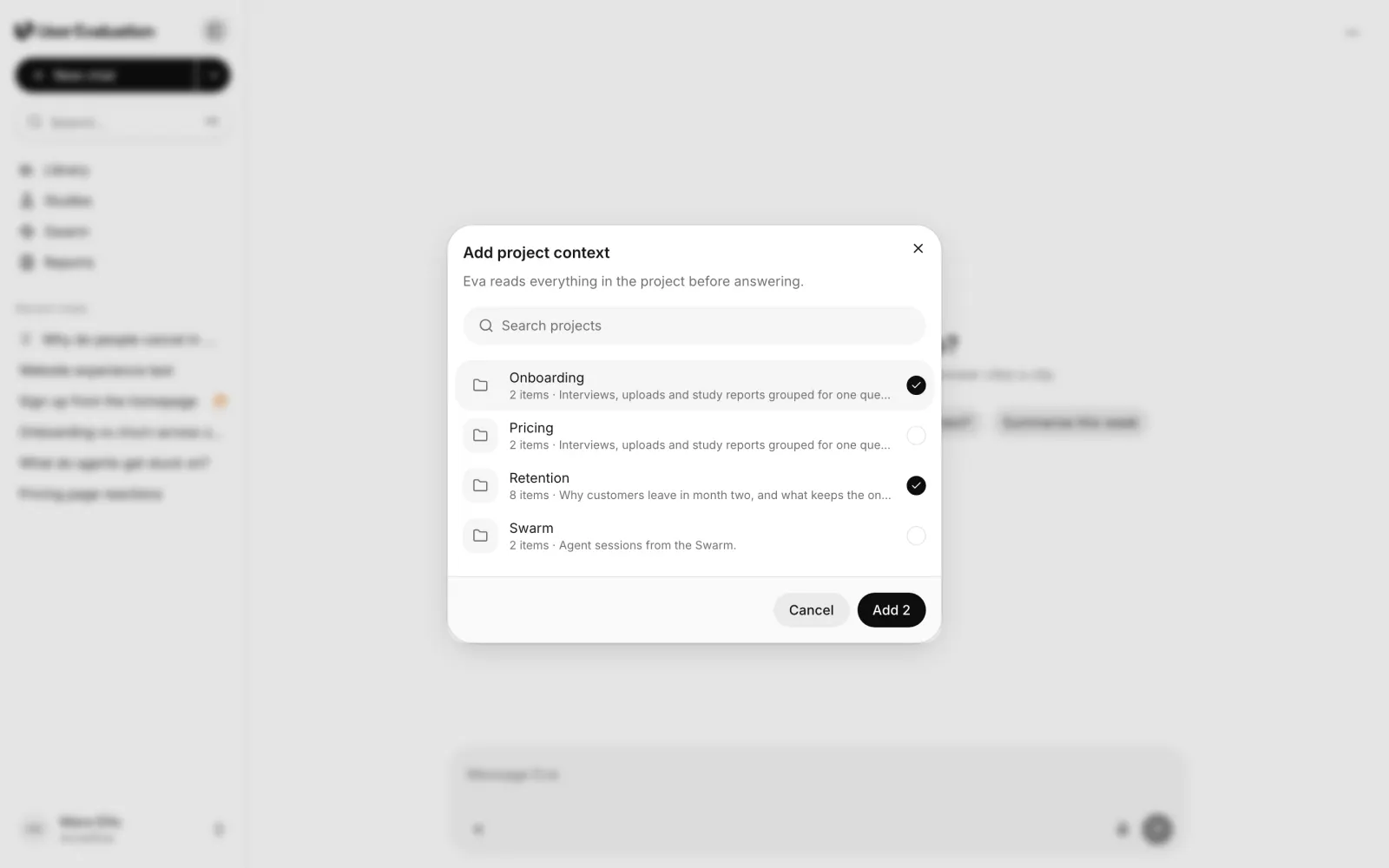
Press Add and each project becomes a chip in the composer. Eva reads everything in those projects before answering, and her answer cites the sources it used, so you can open the exact moment in an interview she is quoting.
The + menu itself is now shorter and clearer: Attach files, Add from library, Add project context, Sources, and Deep research.
Small changes, fewer surprises
Neither of these will make a launch video, and that is fine. A workspace you trust with recordings of real people should delete what you delete, and a research assistant should read what you point it at without making you hunt for it.
If you are new to User Evaluation, the fastest way in is a question to Eva about evidence you already have, or a Swarm run on your own site. Our guides to synthesising qualitative data and thematic analysis with AI show what to do with a project once it is full. Plans and prices are on the pricing page.