The value of a test run is not the raw notes. It is the short list you can act on. When five agents hit the same broken button, you don't want five findings that say "Share does nothing", "Invite failed", "No message after sending" and so on. You want one finding that says what broke, how many agents hit it, and where.
This month Swarm got much better at turning a run into that list. Findings are triaged into one set, each one opens to the real screenshots behind it, and the flow map shows every issue next to the screen where it happened.
Findings are triaged into one set
As each agent's session lands, the friction it noted becomes findings. Once sessions settle, an AI pass looks at all of the run's open findings together and:
- merges near-duplicates. The same problem on the same page or the same flow becomes one finding, however each agent worded it.
- keeps the best one. If people have already answered about a finding, that one stays; otherwise the one most agents hit; otherwise the oldest.
- combines the evidence. The merged finding carries the sessions of every agent that hit it, the worst severity any of them gave, and every page it was seen on. An agent that came back counts once.
- writes clear titles, and a two-to-four-sentence summary of what the agents found.
The summary sits at the top of the Findings tab under What the agents found. It appears once the run has settled. While agents are still browsing, or waiting for a person at a captcha, it reads "Writing…", so you never read a summary that is about to change.
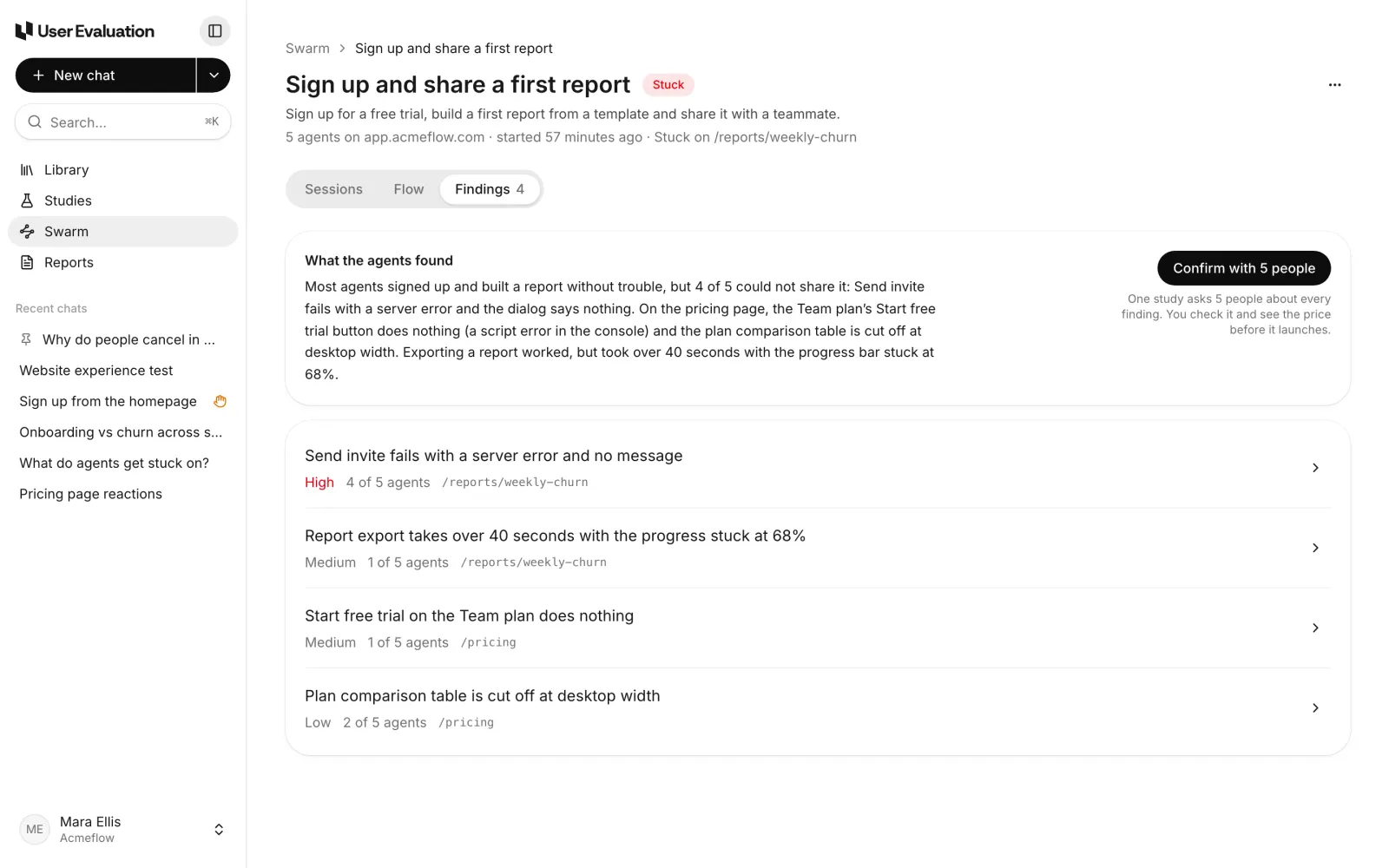
The list is ordered worst first, then by how many agents hit each finding. Each row shows its severity, how many of the run's agents hit it, and the page it was on.
Triage is careful about not churning. A run that hasn't changed is never triaged again, however often you open the tab. If a session lands while a pass is running, nothing is overwritten; that session queues the next pass. Old links to a finding that was merged still work, and open the finding it joined.
Click a finding to see what the agents saw
Click any finding and it opens with the real screenshots from every session that hit it. One moment is shown large, with the session, the time, the persona and the agent's note. The others are listed underneath with thumbnails, so you can see the same problem from each agent's side.
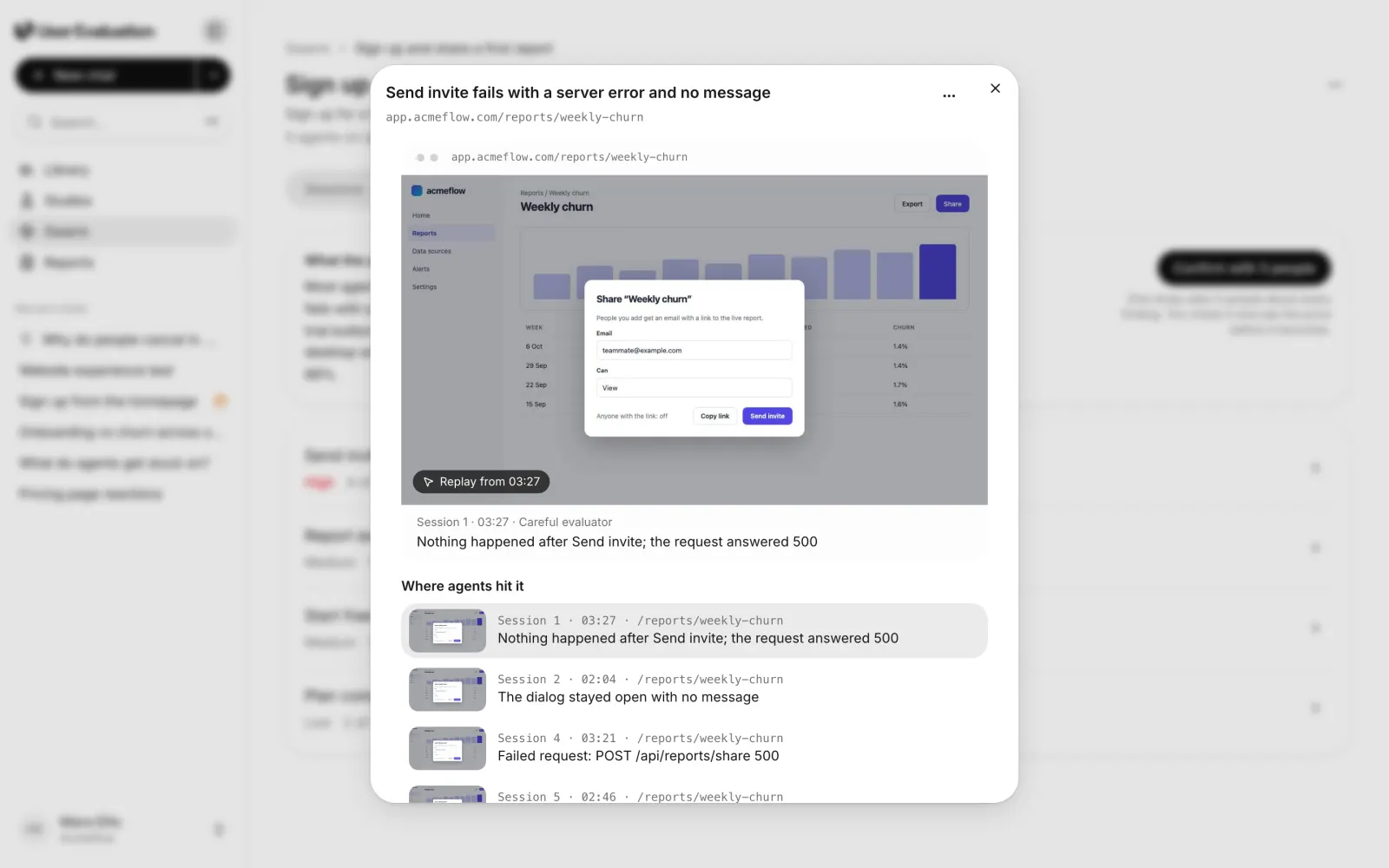
If a friction step had no screenshot of its own, the nearest earlier one on the same page is used. Replay from jumps straight to that moment in the session replay.
Underneath sit the facts and the actions: how many agents hit it, its severity, its confidence (medium until people confirm it), every page it was seen on, and the steps to reproduce. Dismiss is in the ⋯ menu, and a dismissed finding stays in the run's history.
View in flow
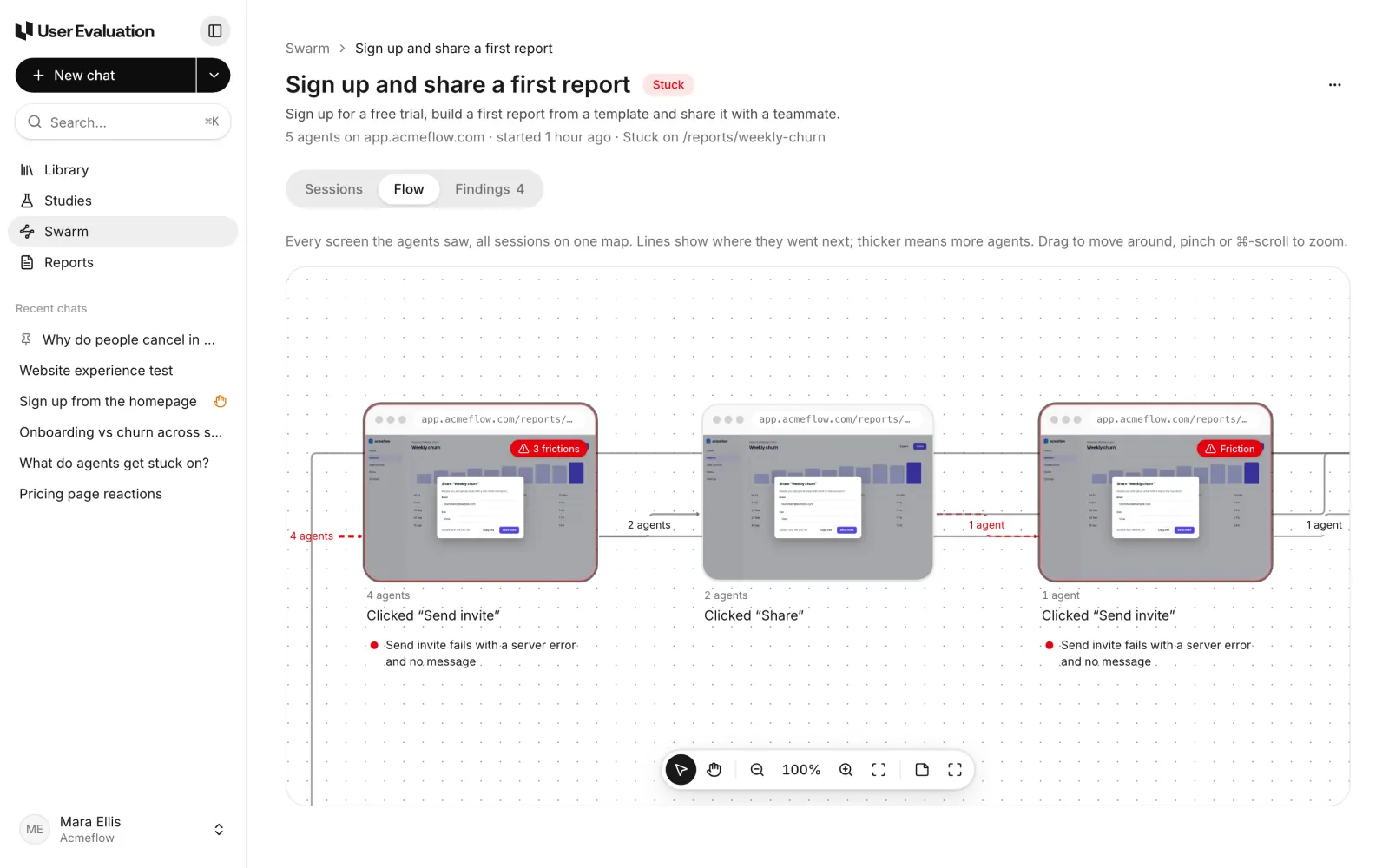
Every finding now has a View in flow button. It opens the run's Flow tab and fits the map to the screens where that issue happened, so you see it in the context of the journey: what the agents did just before, and where they went after.
The flow map shows every screen
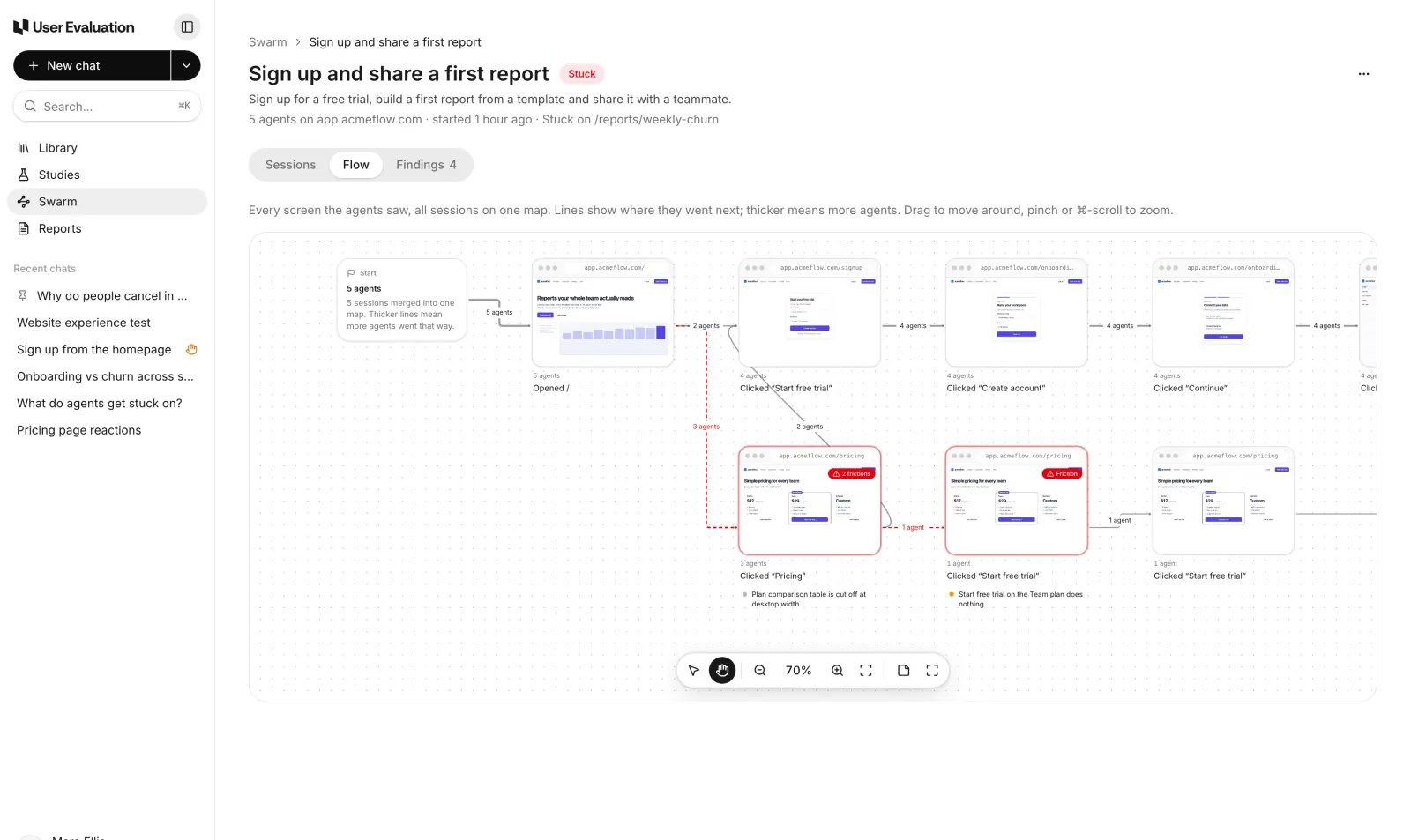
The Flow tab draws one map of the whole run: every screen the agents saw, from all their sessions, merged. A few rules make it readable:
- Screens are matched by page, ignoring query strings, letter case and trailing slashes, and steps on the same page count as one visit.
- A single page can split into several screens. A one-page app that shows a form, then a progress bar, then results at the same address used to be one card. Now a page splits after a click, an Enter, a captcha or a new address, up to six screens a page.
- Lines show where agents went next. Thicker lines mean more agents, and labels say "2 agents" or "2 agents · 5 sessions" when agents came back.
- There is one Start and one End, so you can follow a journey from the first page to where each agent left.
- Each card shows the newest screenshot of that screen, whole on a phone and cropped on a desktop.
Issues sit next to the screens they happened on
Under each card, the map lists up to three issues that happened on that screen, each with a severity dot and its title, and "+N more" when there are others. Click an issue and it opens in the Findings tab. Cards where agents hit friction are outlined in red with a count, so the trouble spots stand out when you zoom out.
That makes the map useful in a design review. Instead of a list of problems and a separate diagram of the journey, you have one picture that says: this is the path people take, and this is where it hurts.
Moving around the map
The map works like a whiteboard. Drag to move around, pinch or ⌘-scroll to zoom, and use the toolbar at the bottom to switch between select and hand tools, zoom, fit everything to the screen, add a sticky note or go full screen. Sticky notes survive the map refreshing while a run is live.
From findings to people
Agent findings are a starting point. They stay at medium confidence until real people confirm them, and every finding offers Confirm with 5 people, which turns the run's findings into one short study with real participants. We cover that in Confirm with 5 people.
Plans include Swarm runs every month (1 on Free, 5 on Pro and 25 on Team), then $2 a run; see the pricing page and how Swarm works.